


Why Is My Internet Slow When I'm Paying for Fast Speeds?
Why a fast internet plan can still feel slow — and how to find the real bottleneck
A fast internet plan sets the capacity available to your premises, but it does not guarantee that every phone, laptop or TV will receive the full speed over Wi-Fi. Router capability, placement, walls, interference, device limits, simultaneous usage and network conditions can all affect real-world performance. Test over Ethernet before paying for a faster plan.
Your plan promises high speeds, yet a video buffers, a game lags or a work file crawls along. The natural reaction is to blame the plan or buy an even faster one.
But internet performance is not determined by the plan speed alone. The speed reaching your premises, the connection from the modem or router to your device, the device itself and the online service you are using are separate links in the same chain. One weak link can make a fast plan feel slow.
Occom’s position is simple: customers deserve an honest diagnosis before an upsell. A higher speed tier can help when a household is genuinely using all of its available capacity. It will not fix a router hidden in a cupboard, weak Wi-Fi in a back bedroom or an old laptop that cannot handle modern wireless speeds.
Start with the difference between internet speed and Wi-Fi speed
Your internet plan describes the connection delivered to your premises. Wi-Fi is the local wireless connection between your router and each device. These are related, but they are not the same thing. A service can perform well at the router while a phone in another room receives a much slower Wi-Fi connection. nbn’s home optimisation guidance similarly explains that the in-home setup can affect speed, coverage and reliability.
This is why the most useful first comparison is a wired Ethernet speed test versus a Wi-Fi test. If the wired result is healthy but the Wi-Fi result drops sharply as you move away from the router, the issue is probably inside the home rather than the plan itself.
Why can a fast internet plan still feel slow?
1. Your Wi-Fi signal is weak where you actually use it
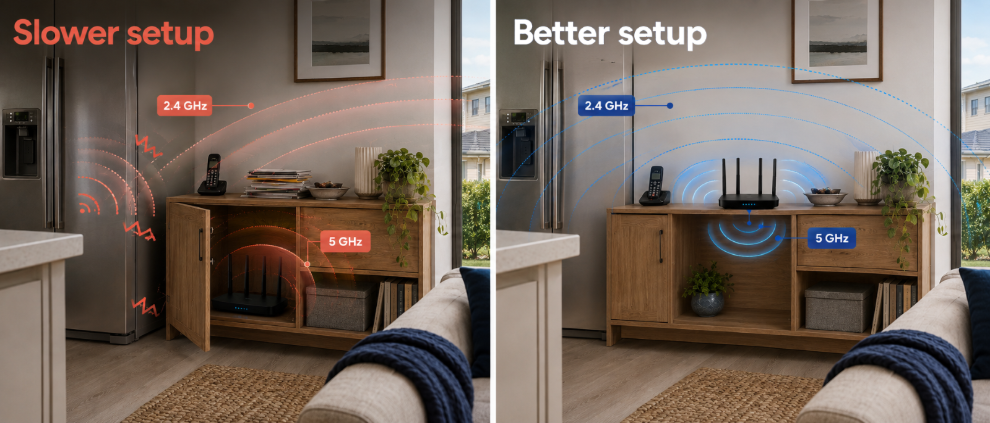
Wi-Fi loses strength over distance and when it passes through walls, floors, cupboards, mirrors and dense building materials. A router placed low to the ground, behind a television or at one end of the home may deliver excellent performance nearby and disappointing performance elsewhere.
Place the router in a raised, open and central position where possible. The nbn in-home optimisation guide recommends reducing obstacles and positioning the router close to the areas where connected devices are used most often.
2. The router cannot keep up with the plan
An older router may use slower Wi-Fi standards, have limited processing power or include Ethernet ports that cap performance. The limitation becomes clearer on higher speed plans and in busy households.
Before replacing it, confirm that the router suits your connection type and speed tier. Occom’s guide on how to select an nbn modem router explains that some premises need a router connected to an nbn connection box, while FTTN and FTTB services generally require a compatible VDSL modem router.
3. The device is the bottleneck
A fast router cannot make an older phone, laptop, smart TV or console receive speeds beyond its hardware limits. Wi-Fi generation, antennas, software and distance from the router all matter.
nbn notes in its connected devices guidance that older Wi-Fi devices may support much lower speeds than newer equipment. Test a second, newer device in the same location before concluding that the entire connection is slow.
4. Too many devices are sharing the connection
Every active device uses part of the available capacity. Cloud backups, game updates, security cameras, streaming and large uploads may run unnoticed. Pause them and disconnect non-essential devices before testing. If performance improves, household demand is the likely bottleneck; a faster plan may help only when that demand is regular.
5. Wi-Fi interference and channel congestion are reducing performance
Neighbouring Wi-Fi networks and household electronics can compete for the same wireless spectrum. The 2.4 GHz band generally reaches further but is often busier. The 5 GHz band can provide higher performance over shorter distances, while 6 GHz requires compatible Wi-Fi 6E or Wi-Fi 7 equipment and has its own range limitations.
Keep the router away from large appliances, cordless phone bases and enclosed cabinets. Occom’s internet help centre includes practical steps for reducing Wi-Fi interference and improving stability.
6. The website, app, game server or VPN is slow
A problem in only one app may come from an overloaded or distant server, a content provider, a VPN route or security software. Compare several services and test without the VPN. If general browsing and speed tests are normal, check the platform before changing your internet plan.
7. There may be a connection, cabling or network issue
Sometimes the problem is beyond Wi-Fi. Damaged cables, loose connectors, line faults, outages, connection technology or peak-period congestion can reduce performance. Fixed Wireless and copper-based services may also behave differently from full-fibre connections.
The ACCC’s former Measuring Broadband Australia program published real-world broadband performance data at different times of day. For your own diagnosis, repeated tests are more useful than a single result: record the time, device, connection method and whether other devices were active.
How to run a speed test that actually tells you something
A random test on a phone in the weakest room can confirm that the phone is slow there, but it cannot show whether the internet service itself is underperforming. Use a controlled process:
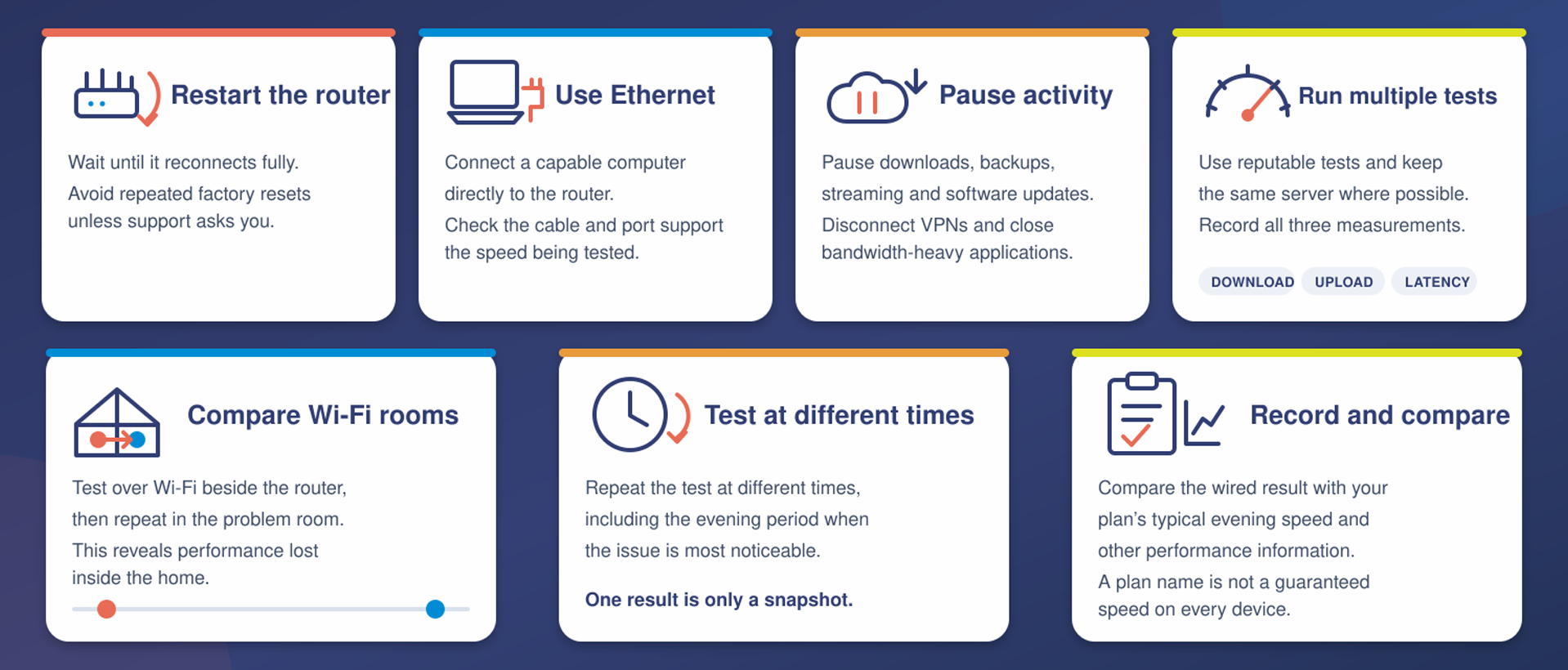
- Restart the modem or router, then allow it to reconnect fully. Avoid repeated factory resets unless support asks you to perform one.
- Connect a capable laptop or computer directly to the router with an Ethernet cable. Confirm that the cable and Ethernet port support the speed you are testing.
- Pause downloads, cloud backups, streaming and software updates. Disconnect from VPNs and close bandwidth-heavy applications.
- Run more than one reputable speed test and record download speed, upload speed and latency. Use the same test server where possible for fair comparisons.
- Repeat the test over Wi-Fi beside the router, then in the room where the issue occurs. This shows how much performance is being lost inside the home.
- Test at different times, including the evening period when the issue is most noticeable. One test is a snapshot, not a diagnosis.
- Compare the wired result with the typical evening speed and other performance information for your plan, rather than assuming the plan name is a guaranteed speed on every device.
What do the results mean?
- Wired speed is healthy, but Wi-Fi is slow: Focus on router placement, interference, coverage, router capability or the device.
- Wired and Wi-Fi speeds are slow on several devices: Check cables and outages, then contact the provider with your test records.
- Only one device is slow: Update or restart that device, check its Wi-Fi capability and test another device in the same location.
- Only one app or website is slow: The problem may be the platform, server, VPN route or application rather than your connection.
- Performance drops only when everyone is online: Your household may be saturating the current plan or overloading the router.
- Performance falls sharply in distant rooms: Consider better router placement, Ethernet cabling, an access point or a properly planned mesh system.
Fix the bottleneck before upgrading the plan
Once you know where performance is being lost, the fix becomes clearer. Start with the least expensive and most reversible changes:
- Move the router into an open, raised and central location. Avoid floors, cabinets and positions beside large appliances.
- Restart the router and install approved firmware updates. Update device operating systems and network drivers as well.
- Use 5 GHz near the router for higher performance and 2.4 GHz where longer range is more important. Keep one clear network setup rather than creating unnecessary overlapping extenders.
- Use Ethernet for fixed, high-demand equipment. nbn’s wired versus wireless advice recommends wired connections for devices such as televisions and gaming consoles when speed and reliability matter.
- For larger or multi-storey homes, consider a mesh system or wired access points. More units are not automatically better; placement and backhaul quality still matter.
- Replace a router only when its standards, ports, coverage or processing capability are genuinely limiting the service.
- Check that the router or modem router is compatible with your connection type, particularly on FTTN or FTTB services.
- Keep a simple record of tests and dropouts. Dates, times and wired results make support investigations faster and more useful.
When does a faster internet plan make sense?
A faster plan is useful when the current connection is working correctly but the household regularly uses all of its available capacity. Common signs include strong wired test results close to the plan’s expected performance, slowdowns only when many users are active, and large downloads or uploads that genuinely need more bandwidth.
A faster plan is less likely to help when the issue is isolated to one room, one device or one app. It also will not create better Wi-Fi coverage by itself. Upgrading without fixing the bottleneck is like widening the highway while leaving the driveway blocked.
Before changing plans, compare the number of users, connected devices and high-demand activities in your home. Occom’s current nbn plans show typical evening speeds and intended usage examples, while address eligibility and available speed tiers can vary by connection technology.
An honest rule before upgrading
Upgrade when the evidence shows that your household is using the full capacity of a correctly functioning connection. Troubleshoot first when wired performance is low, Wi-Fi coverage is uneven or only one device or service is affected.
How Occom can help
You do not need to diagnose every technical detail alone. When you contact Occom, share the wired and Wi-Fi results, the times the issue occurs, the affected rooms and devices, and any router lights or error messages. This helps the support team separate an in-home Wi-Fi problem from a service, network or line issue.
Occom can also help you review router compatibility, connection type, plan suitability and next troubleshooting steps. Contact the team through the Occom Contact Us page, call 1300 299 999 or email support@occom.com.au. Support is available daily from 8:00 am to 10:00 pm AEST, including weekends and public holidays.
Frequently asked questions
Why is my Wi-Fi slow when my wired speed is fast?
This usually means the internet service is reaching the router correctly, but performance is being reduced by Wi-Fi distance, obstacles, interference, router placement, router capability or the device itself. Test beside the router and in the problem room to narrow it down.
Will a faster internet plan fix weak Wi-Fi?
Not by itself. A faster plan increases available internet capacity, but it does not improve Wi-Fi coverage. Weak-signal areas usually need better router placement, a suitable mesh or access-point setup, Ethernet cabling or newer compatible equipment.
Why is my internet slower at night?
Evening slowdowns can occur when more people in the household or local network are online. Background downloads and streaming may also peak at night. Repeat wired tests at several times and contact your provider if performance is consistently below the plan information.
Why does only one device have slow internet?
The device may have older Wi-Fi hardware, outdated software, weak antennas, background applications or power-saving settings. Restart and update it, forget and reconnect to Wi-Fi, then compare it with another device in the same location.
When should I contact Occom about slow internet?
Contact Occom when wired and Wi-Fi speeds are slow across several devices, the service drops out, router or connection-box lights show a fault, or repeated tests remain below expectations. Share test times and results so the team can investigate efficiently.